Introduction
Man pages are the primary documentation for countless command-line tools, yet many users find them dense and hard to navigate. Based on real-world examples from rsync, strace, and Perl, this guide will walk you through proven techniques to transform a standard man page into an accessible, cheat-sheet-friendly reference. By the end, you'll have a clear process for clarifying syntax, options, and common use cases.
What You Need
- Man page source file (e.g., .tmac, .mdoc, or .man format)
- Text editor with syntax highlighting for man macros
- Patience and willingness to revise
- Optional: A small group of test users for feedback
Step-by-Step Guide
Step 1: Audit the Current Man Page
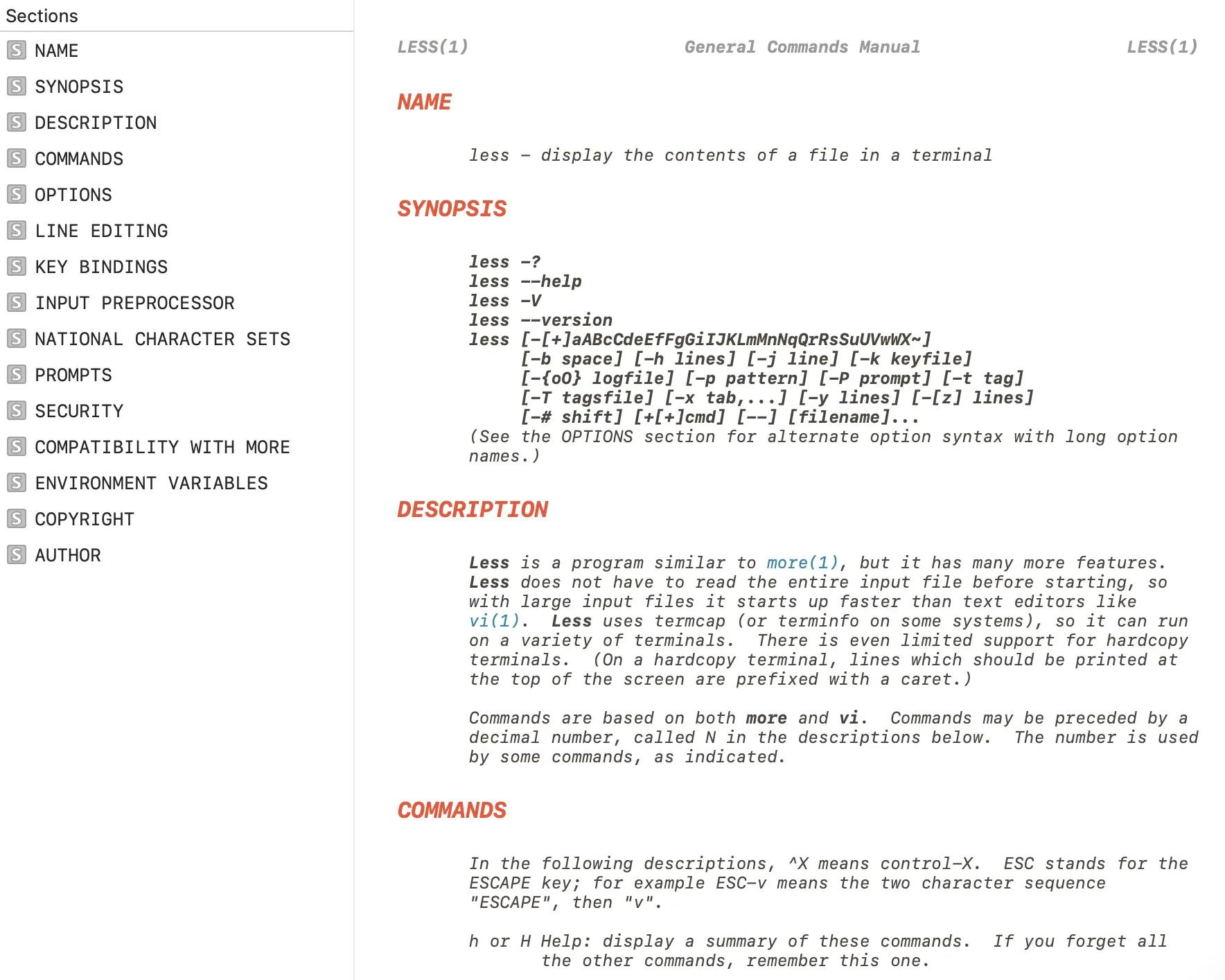
Start by reading your existing man page as a beginner. Identify the worst pain points: an overwhelming SYNOPSIS that lists every possible option, or an OPTIONS section that buries important flags. For example, the original ls man page lists nearly the entire alphabet in its synopsis. Take notes on which parts feel cluttered or hard to scan.
Key observation: If the SYNOPSIS is longer than 10 lines, it's a red flag. Users will skip it entirely.
Step 2: Streamline the SYNOPSIS (like rsync)
The rsync man page keeps its SYNOPSIS extremely terse—just a single line showing the local and remote forms. All options are moved to a dedicated OPTIONS SUMMARY section. Follow this pattern:
- Reduce the SYNOPSIS to a minimal template, e.g.,
tool [OPTION...] SRC... [DEST]. - Create a new section titled
OPTIONS SUMMARYwith one-line descriptions for every option, using a fixed-width table. Example:--verbose, -v increase verbosity --quiet, -q suppress output --output=FILE write to FILE
- After the summary, include the full
OPTIONSsection with detailed explanations, so users can dive deeper when needed.
This two-tier approach lets experienced users grab what they need from the summary and new users refer to the full descriptions.
Step 3: Organize Options by Category (like strace)
The strace man page groups options into categories: General, Startup, Tracing, Filtering, Output Format. This is far easier to scan than an alphabetical list. To implement:
- List all options and sort them into logical groups (e.g., Input/Output, Performance, Debugging).
- In the OPTIONS SUMMARY section, break the table into sub-sections with clear headings.
- In the full OPTIONS section, maintain the same category structure rather than alphabetical order.
For example, the grep man page could group pattern-matching options together (like -E, -F, -P) and output-control options separately (-c, -l, -L). This helps users who can't remember a flag name but know what they want to accomplish.
Step 4: Embed a Quick-Reference Cheat Sheet (like perlcheat)
The Perl man suite includes man perlcheat—a dedicated cheat sheet page with compact ASCII art tables. You can include a similar cheat sheet directly in your man page (as a separate section) or as a stand-alone page. Steps:
- Identify the most common commands, flags, or syntax patterns that beginners need.
- Layout the cheat sheet using fixed-width columns (max 80 characters wide). Example from perlcheat:
SYNTAX foreach (LIST) { } for (a;b;c) { } while (e) { } until (e) { } if (e) { } elsif (e) { } else { } - Place the cheat sheet near the top of the man page, after the SYNOPSIS but before the OPTIONS, or create a
CHEAT SHEETsection that contains it. - Keep the cheat sheet strictly limited to essential information—no more than 20–30 lines.
A good cheat sheet saves users from repeated trips to the full documentation.
Step 5: Test, Iterate, and Refine
Man pages are living documents. After restructuring:
- Ask a few colleagues or community members to find a specific option without help. Time them.
- Gather feedback on the cheat sheet: is it actually useful or just noise?
- Check that the OPTIONS SUMMARY aligns with the full descriptions and that no options are missing.
Iterate based on feedback. Over time, you'll develop a man page that even power users love to use.
Tips for Success
- Keep to 80 characters wide for all ASCII tables and cheat sheets—terminal width constraints matter.
- Use macros consistently: If using
.TPfor option lists, stick with it. Inconsistency confuses readers. - Link to external examples (e.g., a GitHub gist or blog post) for more complex use cases, but don't clutter the man page itself.
- Consider a separate 'CHEAT' man page if the main page becomes too long. Many tools have companion man pages (like
git-cheat). - Always validate syntax: Run
man -l yourfile.manto ensure formatting renders correctly.
Remember, the goal is to reduce the time a user spends hunting for information. If your man page passes the '30-second test'—a user can find what they need in under 30 seconds—you've succeeded.