Overview
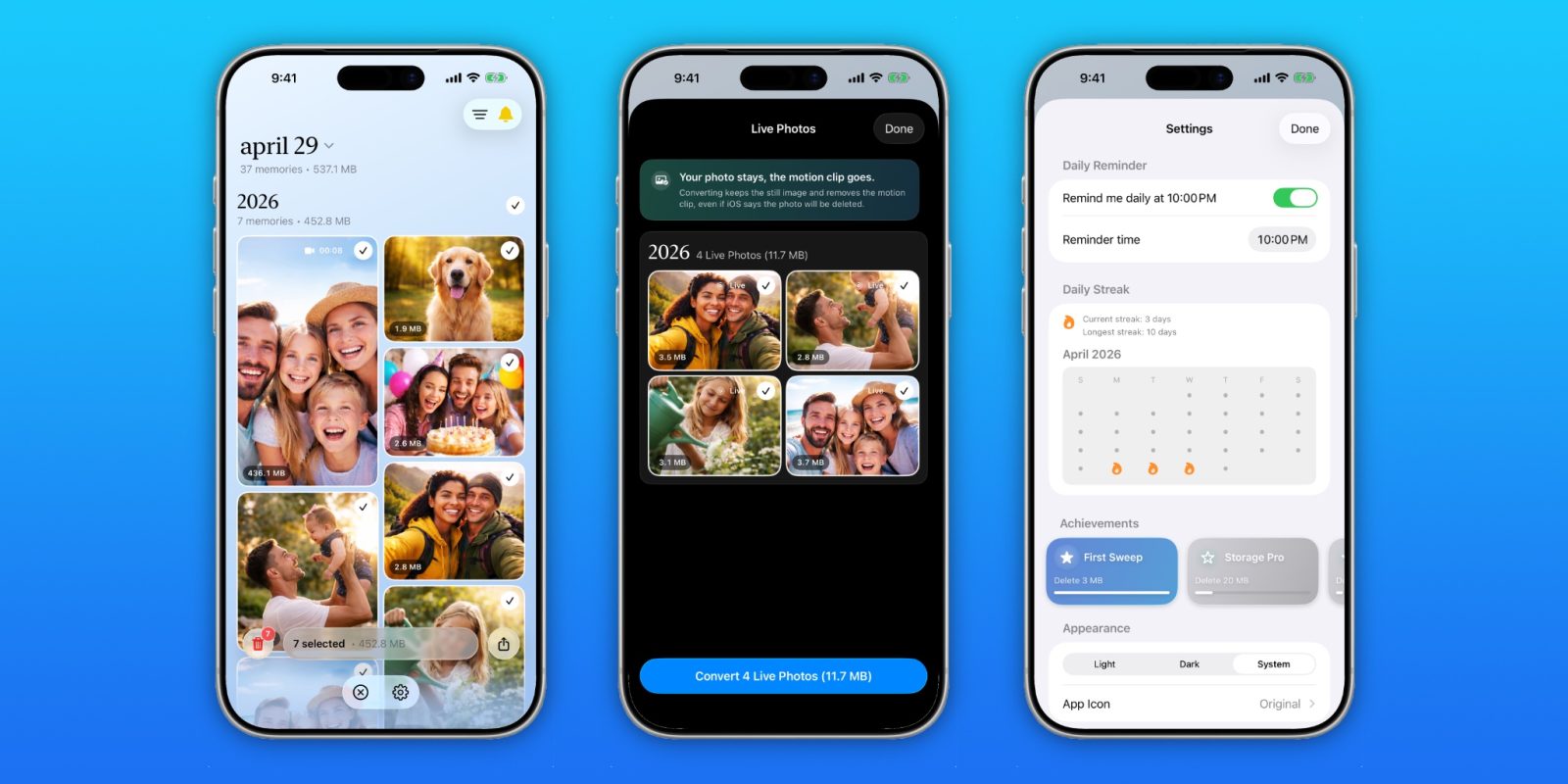
Are you drowning in a sea of digital snapshots, with a photo library that stretches back a decade or more? If you're paying for iCloud storage, every duplicate, blurry shot, and forgotten screenshot is costing you real money. The task of organizing thousands of images feels overwhelming, but what if you could tackle it one day at a time? This Day transforms photo cleanup from a dreaded chore into a simple, daily habit. Instead of marathon cleaning sessions, the app presents you with a manageable set of photos taken on the same date in previous years, turning decluttering into a quick, mindful ritual. This guide will walk you through everything you need to know to turn your bloated library into a lean, curated collection.
Prerequisites
Before diving in, ensure you have the following:
- An iPhone running iOS 16 or later – The app leverages modern device features and requires the latest iOS for optimal performance.
- iCloud Photos enabled – This Day works best when your entire library is synced to iCloud, as it accesses photos from all years.
- Adequate iCloud storage – Ideally, you have enough space to allow the app to analyze your library without constant warnings. (Don’t worry, the app will help you free up room!)
- Patience for the initial scan – The first time you open the app, it indexes your entire photo library. This may take a few minutes, especially for large libraries.
- A willingness to make decisions – The app presents photos for review; you'll need to decide whether to keep or delete each one.
Step-by-Step Instructions
1. Getting Started: Install and Allow Permissions
- Download This Day from the App Store.
- Open the app and grant access to your photo library when prompted. You can choose “Full Access” to enable deletion within the app, or “Limited Access” to start with a subset of photos.
- Wait for the initial indexing. A progress bar shows the scan status. Once complete, the app will present a daily batch of photos.
2. Establishing the Daily Habit
The core mechanic is simple: each day, the app shows you photos taken on that exact date in previous years. For example, on March 15, you'll see photos from March 15 of previous years – one photo at a time. Your task is to swipe or tap to categorize:
- Keep (usually a green checkmark) – The photo stays in your library.
- Delete (usually a red X) – The photo is moved to your Recently Deleted album.
- Maybe (a flag or save for later option) – The photo is set aside for a future review session.
Spend no more than 2–3 minutes per day. Consistency beats volume. Over a year, you'll have decluttered 365 days’ worth of photos.
3. Using Smart Filters and Custom Views
This Day offers filters to narrow down what you see. For example, you can focus on only screenshots, duplicates, or live photos. To use filters:
- Tap the filter icon (often a funnel) in the top-right corner.
- Select one or more categories (e.g., “Screenshots only”).
- The app will then show only photos matching those criteria from the current day’s batch.
This is especially useful for deleting similar shots from a burst sequence.
4. Bulk Actions: The Power of Lasso and Select
When you have a series of photos (like 20 near-identical shots from a birthday party), you can do more than swipe one by one:
- Tap the Select button to enter selection mode.
- Drag across thumbnails (like using a lasso) to select multiple photos.
- Choose Delete All Selected or Keep All Selected.
This accelerates the process while still requiring your intentional choice.

5. Recovery and Undoing Deletions
Accidentally deleted a cherished memory? All deleted photos go to the Recently Deleted album within the Photos app, where they remain for 30 days. You can recover them by going to the Photos app, tapping Albums > Recently Deleted, selecting the photo, and tapping Recover. This safety net means you can be more aggressive in your decluttering without fear of permanent loss.
Common Mistakes and How to Avoid Them
Mistake 1: Trying to Do Too Much at Once
Decluttering 10,000 photos in one weekend is a recipe for burnout. Stick to the daily habit – even if you only review 5 photos, that’s a win. The app is designed for small, repeated efforts.
Mistake 2: Ignoring the “Maybe” Pile
Many users keep swiping “Maybe” and never revisit those photos. Schedule a weekly or monthly review of your “Maybe” album to either keep or delete them. Otherwise, the clutter just moves to a different place.
Mistake 3: Deleting Without Checking for Duplicates
This Day helps you see similar photos, but sometimes you’ll delete the best take by mistake. Before deleting, quickly compare thumbnails. Use the Duplicate filter to see exact copies – keep the one with the highest resolution or better composition.
Mistake 4: Not Backing Up Before Decluttering
While iCloud saves a copy, consider making an offline backup (e.g., to a computer or external drive) before starting a major cleanup. Then you can safely delete from iCloud knowing you have a backup.
Mistake 5: Forgetting About Storage Savings
After each session, check your storage. The app can show you how much space you’ve freed. Use this as motivation to continue. If you don’t see a reduction, you might be keeping too many “Maybe” photos.
Summary
This Day reimagines photo decluttering as a manageable daily habit rather than a daunting one-time task. By leveraging the date-based review system, smart filters, and bulk selection, you can systematically trim your library while preserving your most treasured memories. The key is consistency: a few minutes each day, stay disciplined about the “Maybe” pile, and take advantage of the 30-day recovery window. With this guide, you’ll turn your bloated iCloud storage into a curated, meaningful collection – one day at a time.